At-A-Glance Installation Summary
Interactive Step-by-Step Installation Checklist
Click each card as you finish the step on your FireStick to mark it complete and track your progress:
Step 1: Install the Free "Downloader" Utility
From your FireStick home screen, select Find → Search, type Downloader, and click Get to install AFTVnews Downloader from the Amazon Appstore.
Step 2: Enable "Install Unknown Apps" in Developer Options
Open Settings → My Fire TV → Developer Options → Install Unknown Apps and toggle Downloader to ON.
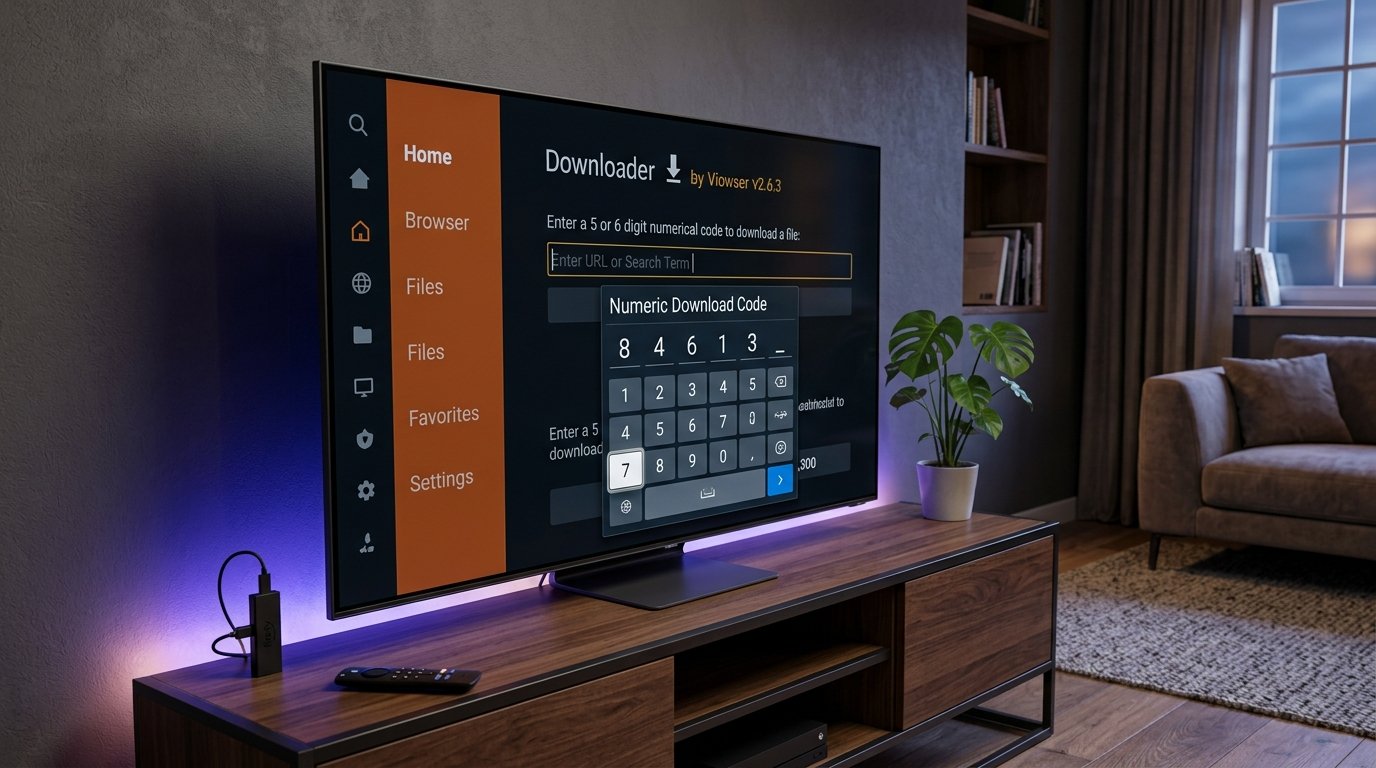
Step 3: Enter Downloader Quick Code: 256891
Launch Downloader, click the URL bar, and type the 6-digit code:
Click GO to initiate the secure 28.4 MB APK download.
Step 4: Confirm Installation & Click Done
When the download completes, click Install on the Fire OS prompt, then click Done (do not open yet).
Step 5: Delete Temporary APK to Save Flash Storage
Inside Downloader, click Delete twice when prompted. The app remains fully installed and you reclaim 28.4 MB of free storage space!
How to Move NetMirror to Your FireStick Home Screen
To access NetMirror with one click without digging through system menus:
- Hold the Home button on your Fire TV remote for 3 seconds until the quick menu pops up.
- Select Apps.
- Scroll down to the bottom where new apps appear, and highlight NetMirror.
- Press the Options button (the 3 horizontal lines on your remote) and click Move to front.
Prefer Direct Browser Download on PC or Mobile?
If you are setting up NetMirror on an Android phone, tablet, or PC emulator, you can download the verified standalone APK directly:
Download Official NetMirror APK (28.4 MB)