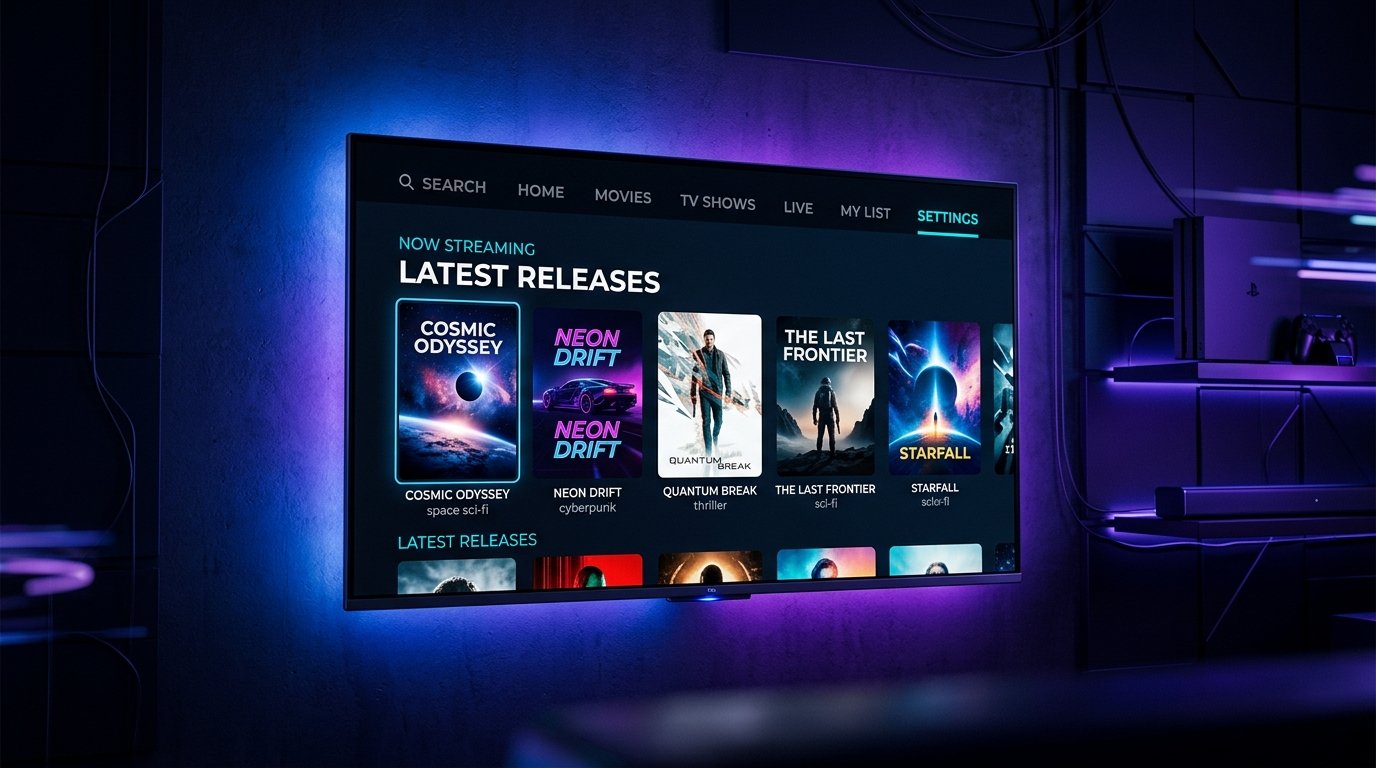
Optimized for remote controls, D-pad navigation, high-bitrate AV1 decoding, and zero interface lag on Google TV, Sony Bravia, and FireStick 4K Max.
Why Stream NetMirror on Android TV and FireStick?
While mobile streaming offers on-the-go convenience, premier cinematic titles deserve the fidelity of your home living room television. NetMirror's dedicated TV architecture delivers a native 10-foot user experience designed specifically for directional keypad (D-pad) remotes, high dynamic range (HDR10 / Dolby Vision) color mapping, and multichannel surround sound passthrough.
Below, we provide two tested installation methods: the celebrated Downloader App method (the fastest over-the-air route) and the USB Drive OTG method (ideal for smart TVs with physical USB ports).
Method 1: Sideloading via Downloader App (Recommended for FireStick & Google TV)
The Downloader by AFTVnews application is the gold standard utility for downloading APK files onto smart TV platforms. Follow these steps:
AFTVnews Downloader App Quick Connect
Input this numeric shortcode into your TV Downloader app address bar to download without typing long URLs:
Launch Downloader, press Up on your remote to select the URL entry box, and click the Center Select button.
Type 256891 on the on-screen numeric keypad, navigate to Go, and press Select.
The screen redirects to our secure mirror; the 28.4 MB installer streams down in ~3 seconds.
Click Install on the TV prompt. After completion, choose Delete to clear the installer cache.
Install the Free Downloader App
On your Fire TV Stick or Google TV home screen, open the Search / Find tool. Type Downloader, choose the orange icon published by AFTVnews.com, and click Get / Download to install it for free.
Enable Developer Options & Unknown Apps Permission
Before Downloader can install external packages, your TV system must grant permission:
- On Fire TV Stick: Go to Settings → My Fire TV → About. Highlight your device name and click the center remote button 7 times until you see "No need, you are already a developer." Return to My Fire TV → Developer Options → Install Unknown Apps → Set Downloader to ON.
- On Google TV (Chromecast / Sony Bravia / TCL): Go to Settings → System → About. Scroll to Android TV OS Build and press the select button 7 times. Return to Settings → Apps → Security & Restrictions → Unknown Sources → Toggle Downloader to Allowed.
Enter the Download URL or Quick Code into Downloader
Open Downloader, grant it permission to access files when prompted, and highlight the URL address bar on the Home tab. You can enter our numeric Downloader Quick Code:
Or manually type our direct gateway address:
Click Go. Downloader will immediately resolve the redirect, connect to our high-speed CDN mirror, and download netmirror-v6.2.0.apk (28.4 MB) within seconds.
Complete Installation & Clean Up
When the file finishes downloading, an installation dialog will appear automatically. Select Install. Once completed, tap Done and select Delete on the subsequent Downloader prompt to remove the temporary installer and conserve your TV's flash storage space.
Method 2: Sideloading via USB Flash Drive (Best for Sony Bravia & Android TV Boxes)
If your smart TV features physical USB 3.0 ports (standard on Sony Bravia, Philips, and Nvidia Shield TV), you can install the app without typing web addresses on your remote:
- Download the APK to your Computer: Use your PC or Mac to fetch the verified netmirror apk download for android link.
- Format USB Drive to FAT32: Ensure your flash drive is formatted with the
FAT32orexFATfilesystem so your smart TV can read the directory structure. - Copy File: Transfer
netmirror-v6.2.0.apkto the root directory of the flash drive. - Install File Commander on TV: Open the Google Play Store on your smart TV and install a free file manager like File Commander or FX File Explorer.
- Execute Installation: Plug the USB drive into your television. Launch File Commander, navigate to your USB drive, select the NetMirror APK file, and click Install.
Optimizing NetMirror Settings for Big-Screen Television Viewing
To ensure an effortless home theater experience, configure these three vital playback options within the NetMirror Settings menu:
1. Enable Leanback Remote Mode
Inside NetMirror Settings → Interface, toggle TV / Leanback Mode. This increases thumbnail card dimensions, enhances active focus highlights, and enables standard D-pad remote navigation.
2. Dolby 5.1 Audio Passthrough
Under Audio Settings, switch playback decoding from Software PCM to Digital Audio Passthrough (AC3/E-AC3). This routes raw multichannel audio tracks directly to your soundbar or A/V receiver.
How to Add NetMirror to Your TV's Primary Home Screen:
On modern Fire OS and Google TV interfaces, sideloaded apps may initially appear in the extended "All Apps" menu. To move NetMirror to your primary favorites row: highlight the NetMirror icon in your app list, press the Options button (three horizontal lines) on your remote, and select Move to Front or Add to Favorites.
Ready to Stream on Your Smart TV?
Download the official NetMirror APK package today and enjoy unlimited cinema in full 4K UHD with Dolby Atmos audio passthrough.
