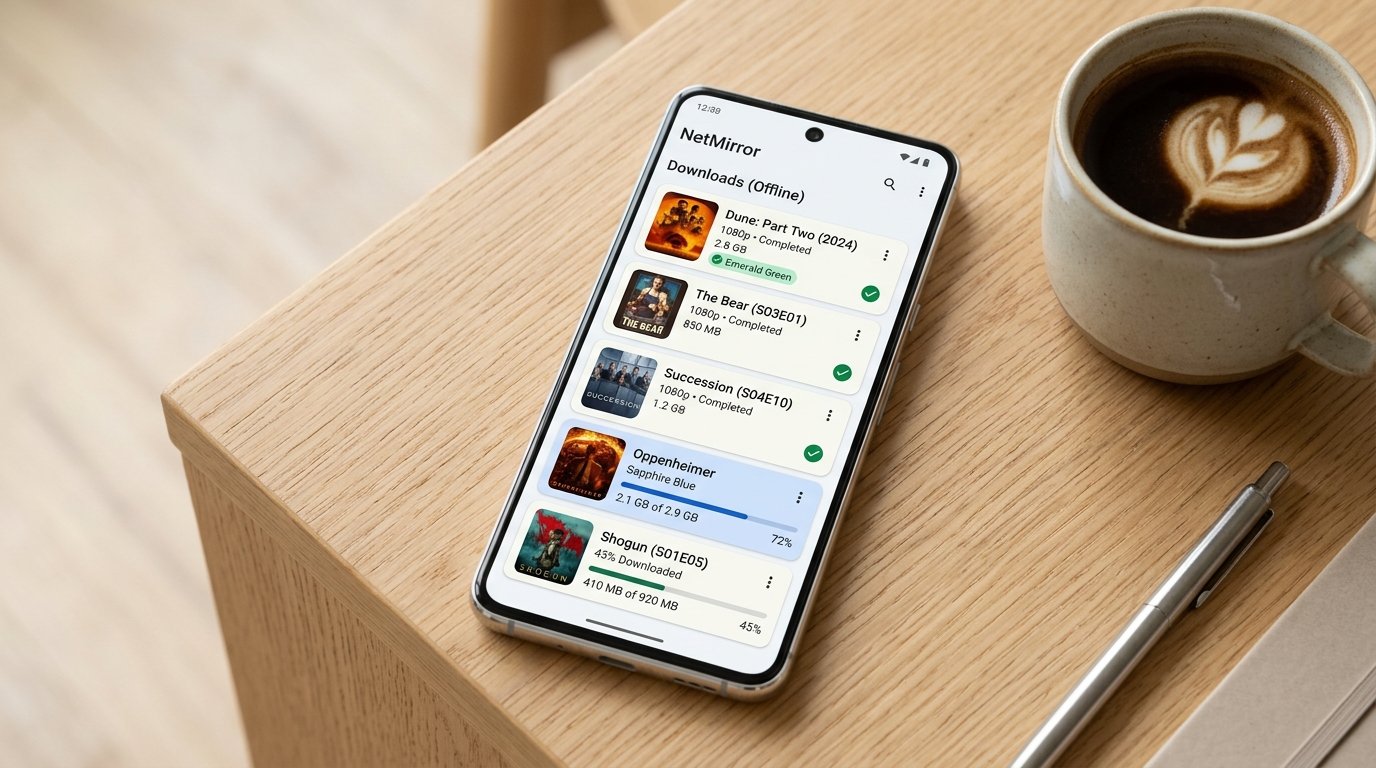
The Advantage of Local Media Downloads
While on-demand streaming is the primary attraction of the netmirror movies app download, network drops and cellular roaming data caps make offline storage indispensable. Whether commuting via subway or traveling cross-country on a 6-hour flight, downloading your queue in advance guarantees flawless, 100% buffer-free playback with zero internet dependency.
Unlike mainstream subscription apps that impose arbitrary 48-hour expiration timers or require re-authenticating online every week, NetMirror stores video streams in standard MP4/MKV container formats that remain accessible until you choose to delete them.
Step-by-Step Offline Download Procedure
Step 1: Grant Media Storage Permission
On modern Android versions (Android 11 to Android 15), tap Allow when NetMirror prompts for permission to read and write to media storage. If you previously declined, go to Settings → Apps → NetMirror → Permissions → Photos and Videos / Storage and toggle to Allow.
Step 2: Select Resolution & Bitrate
Open any movie or television series detail page. Next to the blue Watch Now button, tap the Download (arrow pointing down) icon. A quality selection modal will appear with estimated file sizes:
- 480p SD (~350 MB - 500 MB): Ideal for smaller screens or preserving precious storage.
- 720p HD (~750 MB - 1.2 GB): Recommended balance of crispness and fast transfer speed.
- 1080p FHD (~1.8 GB - 2.8 GB): Pristine picture clarity with multichannel audio.
- 4K UHD (~4.5 GB+): Maximum bitrate for high-resolution displays.
Step 3: Select Audio & Subtitle Tracks
Before the download initiates, check the boxes for your preferred audio track (e.g., Original English 5.1 or Regional Dubs) and include synchronized subtitle files (.srt) for your language.
Step 4: Monitor Queue & Battery Saver Bypass
Switch to the Downloads tab on the bottom navigation dock. To prevent aggressive Android OEM battery managers (such as Samsung One UI or Xiaomi MIUI) from killing background downloads when your screen turns off: go to Settings → Apps → NetMirror → Battery → Unrestricted.
Configuring External MicroSD Card Storage Path
If your smartphone or tablet features an expandable MicroSD slot, you can offload gigabytes of movie downloads to prevent your primary internal storage from filling up:
How to Route Downloads to MicroSD:
- Open NetMirror Settings → Download Directory.
- Select External Storage (MicroSD).
- Android's Storage Access Framework (SAF) will launch. Navigate to the root of your SD card, create a folder named
NetMirror_Media, and tap Use This Folder. - Future downloads will save directly to your removable memory card.
Troubleshooting Paused or Failed Downloads
Download Stuck at 99%
Solution: At 99%, the NetMirror download manager stitches temporary video fragments into the final MP4 container. If stuck, ensure you have at least 1 GB of extra temporary buffer space on your drive, or pause and resume the transfer.
"Download Failed: Server Link Expired"
Solution: CDN streaming token links naturally expire after 12 hours. Tap the three vertical dots next to the failed file and tap Refresh Link to generate a fresh token and resume without restarting from 0%.
Get the Latest NetMirror Build with Download Manager 3.0
Upgrade to version 6.2.0 for 2x faster multi-threaded downloads and automatic subtitle packaging.
Download NetMirror APK (Direct Link)