How to Install NetMirror APK on PC — Windows & Mac Guide
Stream Netflix, Prime Video, and 50+ OTT platforms on your desktop or laptop. Use the BlueStacks emulator for a native experience, or access the NetMirror web version directly in your browser.
Method 1: Install via BlueStacks (Recommended)
The best way to run Android apps on your desktop. Full-featured, free, and battle-tested by 500M+ users.
BlueStacks is the world's most popular Android emulator. It creates a virtual Android environment on your PC, allowing you to install and run any APK file — including NetMirror — exactly as it would run on a phone. It's completely free, has no ads, and supports keyboard/mouse input for a desktop-friendly experience.
Download BlueStacks 5
Go to bluestacks.com and click the "Download BlueStacks 5" button. The installer is approximately 500MB and takes 2-3 minutes to download on a standard connection.
Why BlueStacks 5? Version 5 uses significantly less RAM than older versions, supports multi-instance (run multiple apps simultaneously), and is optimised for streaming apps. It's compatible with both Intel and AMD processors.
Install BlueStacks on Your PC
Run the downloaded installer (BlueStacksInstaller.exe on Windows, BlueStacks.dmg on Mac). Click "Install Now" and wait about 3 minutes. The installer will set up the virtual Android environment, configure GPU passthrough for smooth streaming, and create a desktop shortcut.
Important: If you see a "Virtualisation Technology (VT)" error, you'll need to enable VT in your BIOS. Restart your PC, enter BIOS (usually by pressing F2 or DEL during boot), find the Virtualisation option, and enable it. Most modern PCs have this enabled by default.
Download the NetMirror APK
Download the NetMirror APK file to your PC using the button below. Save it somewhere easy to find, like your Desktop or Downloads folder.
📥 Download NetMirror HTML5Install APK in BlueStacks
There are two ways to install the APK:
- Drag & Drop: Simply drag the APK file from your desktop and drop it into the BlueStacks window. Installation starts automatically.
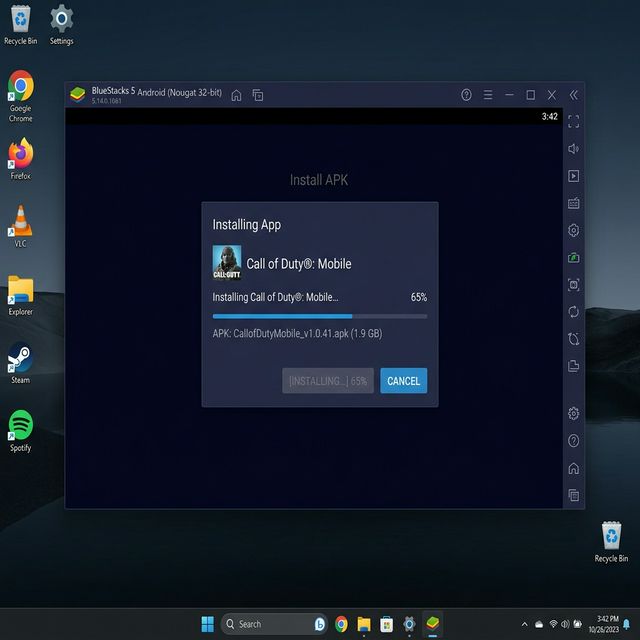
- Menu Install: In BlueStacks, click the "Install APK" button in the sidebar. Browse to the downloaded APK file, select it, and click Open.
Installation takes about 30 seconds. You'll see a "NetMirror installed successfully" notification when it's done.
Launch and Start Streaming
Find the NetMirror icon on the BlueStacks home screen and click it. The app opens in the emulator window just like it would on a phone — except now you can use your mouse to navigate and your keyboard for search. Stream in up to 4K quality on your large monitor. For the best experience, set BlueStacks to landscape mode and resize the window to fit your screen.
System Requirements
| Requirement | Minimum | Recommended |
|---|---|---|
| Windows | Windows 7 SP1 | Windows 10/11 (64-bit) |
| macOS | macOS Sierra (10.12) | macOS Ventura (13)+ |
| Processor | Intel/AMD multi-core | Intel Core i5+ / Apple M1+ |
| RAM | 4GB | 8GB+ |
| Storage | 5GB | 10GB+ (SSD preferred) |
| GPU | DirectX 11 / OpenGL 4.3 | Dedicated GPU (GTX 750+) |
| Internet | Broadband | 25 Mbps+ |
Method 2: NetMirror Web Version (No Download)
Stream directly in your browser. Zero downloads, zero installation.
If you don't want to install anything on your PC, NetMirror also offers a web-based streaming portal that works in any modern browser. Open Chrome, Firefox, Edge, or Safari and navigate to the NetMirror web app URL. You can start streaming immediately without creating an account.
Pros of the Web Version
- No downloads, no emulator, no setup
- Works on any OS (Windows, Mac, Linux, ChromeOS)
- No storage space required
- Always on the latest version automatically
Limitations
- Quality capped at 1080p (BlueStacks supports 4K)
- No offline download feature
- Requires a constant internet connection
- Pop-up blocker may interfere — whitelist the site
Alternative Android Emulators for PC
BlueStacks is our top recommendation, but NetMirror also works on these emulators:
| Emulator | OS Support | Performance | Best For |
|---|---|---|---|
| BlueStacks 5 | Windows, Mac | ⭐⭐⭐⭐⭐ | Best overall |
| NoxPlayer | Windows, Mac | ⭐⭐⭐⭐ | Lightweight alternative |
| LDPlayer | Windows only | ⭐⭐⭐⭐ | Best for low-end PCs |
| MEmu Play | Windows only | ⭐⭐⭐ | Multi-instance support |
| Android Studio AVD | Windows, Mac, Linux | ⭐⭐ | Developer testing only |
PC Installation — FAQ
Yes. BlueStacks is used by over 500 million people worldwide and is certified by multiple security firms. It's a legitimate Android emulator, not a hack or bypass tool. It doesn't modify your OS or install hidden software.
BlueStacks 5 is highly optimized and uses about 500MB-1GB of RAM during operation. On a PC with 8GB+ RAM, you won't notice any slowdown. Close heavy programs (video editors, games) before running if you have only 4GB RAM.
Yes. NetMirror works perfectly on Windows 11 via BlueStacks. Note: Windows 11's built-in Windows Subsystem for Android (WSA) has been discontinued by Microsoft, so BlueStacks remains the best option for running Android apps on Windows.
Yes. BlueStacks 5 has native Apple Silicon support for M1, M2, M3, and M4 Macs. It runs with excellent performance and full hardware acceleration. Download the Mac version from bluestacks.com.
Not currently. NetMirror is primarily an Android app. Use BlueStacks for the native android experience on PC, or use the web version for browser-based streaming without any installation.