How to Install NetMirror APK on Android TV & Smart TV
Turn your big screen into a free streaming powerhouse. This guide works on Sony Bravia, Xiaomi Mi Box S, Mi TV Stick, TCL, Hisense, Philips, NVIDIA Shield, and all Chromecast with Google TV devices.
Method 1: Install via Downloader App (Recommended)
The fastest method. Uses the free Downloader app from the Play Store.
The Downloader app by AFTVnews is the most reliable way to sideload APKs onto Android TV devices. It's free, officially available on the Google Play Store for Android TV, and used by millions of sideloaders worldwide.
Install the Downloader App
On your Android TV, open the Google Play Store (or the pre-installed app store). Search for "Downloader" — look for the one by AFTVnews with the orange icon. Click Install. It's free and takes about 30 seconds to download.
If you can't find Downloader on your TV's Play Store, you can install it from your phone: open play.google.com, search for Downloader, select your TV device, and click Install remotely.
Enable Unknown Sources
Before sideloading, your TV needs permission to install apps from outside the Play Store:
- Stock Android TV: Settings → Device Preferences → Security & Restrictions → Unknown Sources → Toggle ON for Downloader
- Sony Bravia: Settings → Device Preferences → Security & Restrictions → Unknown Sources → Downloader → Allow
- Xiaomi Mi Box / Mi TV Stick: Settings → Privacy → Security → Unknown Sources → Toggle ON
- NVIDIA Shield: Settings → Device Preferences → Security & Restrictions → Unknown Sources → Downloader
- Chromecast with Google TV: Settings → System → About → Click "Android TV OS build" 7 times → Back → Security → Unknown Sources
Download the NetMirror APK
Open the Downloader app. In the URL bar at the top, enter the NetMirror download URL and press Go. The APK file (28.4MB) will download directly to your TV. This usually takes about 30 seconds.
Install the APK
After the download completes, Downloader will prompt you to install. Press Install using your remote and wait about 15 seconds. When you see "App installed", press Done. Downloader will ask if you want to delete the APK file — press Delete to free up storage.
Launch NetMirror
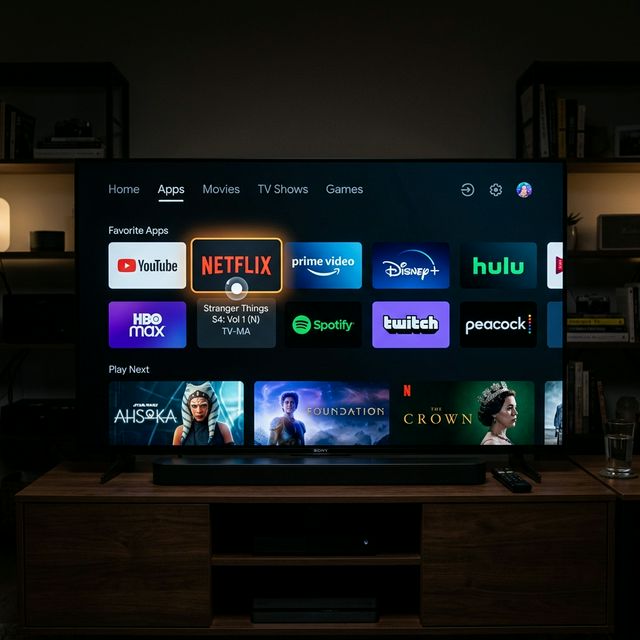
Find NetMirror in your apps list. On most Android TVs, go to Apps row → See All to find sideloaded apps. Click the NetMirror icon. It opens directly to the content library — use your remote's directional pad to browse and the center button to select. Stream in Full HD or 4K on your big screen.
Method 2: Install via USB Drive
No internet required during installation. Transfer the APK from your computer via USB.
Download the NetMirror APK to your computer from the download page.
Copy the APK file to a USB flash drive (formatted as FAT32 or exFAT).
Plug the USB drive into your Android TV's USB port.
Install a file manager from the Play Store (like X-plore File Manager or Solid Explorer). Navigate to the USB drive, find the APK, and tap Install.
Supported Android TV Devices
| Device | Status | Notes |
|---|---|---|
| Sony Bravia (Android TV 9+) | ✅ Tested | Full support including 4K |
| Xiaomi Mi Box S | ✅ Tested | Smooth performance |
| Xiaomi Mi TV Stick | ✅ Tested | Works great |
| NVIDIA Shield TV (Pro) | ✅ Tested | Best performance of all TVs |
| Chromecast with Google TV | ✅ Tested | Works after enabling dev options |
| TCL Android TV | ✅ Tested | All 2020+ models |
| Hisense Android TV | ✅ Tested | Requires Downloader method |
| Philips Android TV | ✅ Tested | Full support |
| Samsung Tizen TV | ❌ Not Supported | Use screen mirroring from phone |
| LG webOS TV | ❌ Not Supported | Use screen mirroring from phone |
Samsung & LG TV owners: Your TVs don't run Android TV, so you can't install APK files directly. Instead, install NetMirror on your phone and use screen mirroring (or plug in an Amazon Firestick for a better experience).
Tips for the Best TV Streaming Experience
- Use a wired Ethernet connection instead of WiFi for 4K streaming. TV WiFi adapters are often weaker than phones.
- Connect a Bluetooth mouse to your TV for easier navigation in apps that weren't designed for remote controls.
- Clear app cache regularly (Settings → Apps → NetMirror → Clear Cache) to prevent playback issues.
- Disable power saving modes that may interrupt background data, causing streams to buffer.
- Use an HDMI CEC-compatible remote for seamless control across devices.
Android TV Installation — FAQ
No. NetMirror is not available on the Google Play Store for Android TV. You need to sideload it using the Downloader app or USB method described above.
Yes. The app supports D-pad navigation (directional buttons on your remote). Use the arrow keys to browse, center button to select, and back button to go back. For a smoother experience, you can also connect a Bluetooth mouse.
Samsung (Tizen) and LG (webOS) TVs don't support Android APK files. Your options are: a) Mirror from your phone using Smart View/AirPlay, b) Connect an Amazon Firestick or Chromecast with Google TV, or c) Use an HDMI cable from a laptop running BlueStacks.
Yes. If your TV supports 4K and you have a stable internet connection (25 Mbps+), NetMirror will stream in 4K where available. The NVIDIA Shield TV provides the best 4K performance of all Android TV devices.