How to Install NetMirror APK on Amazon Firestick
The definitive guide to installing netmirror on firestick. Uses the free Downloader app. Works on Fire TV Stick 4K, 4K Max, Lite, Fire TV Cube, and all Fire TV editions. Takes about 5 minutes from start to streaming.
Why Install NetMirror on Firestick?
If you're looking to netmirror install apk firestick, you're making one of the smartest streaming decisions possible. Amazon Firestick is the most popular streaming device in the world, and combining it with NetMirror gives you access to 50+ OTT platforms on your big screen — for free.
Here's why the Firestick + NetMirror combo is so powerful:
- Big screen experience — Watch on your 55" TV instead of a 6" phone screen
- 4K quality — Fire TV Stick 4K and 4K Max support Ultra HD streaming
- Remote control friendly — Navigate NetMirror with your Firestick remote
- Affordable hardware — Firestick costs ₹2,999-₹6,999, and NetMirror is free
- Alexa integration — Use voice commands to search for content
- No subscription stacking — Replace 5+ paid apps with one free app
The entire installation takes about 5 minutes and doesn't require any technical expertise. If you can use a TV remote, you can install NetMirror on a Firestick.
Step-by-Step: Install NetMirror on Firestick
Follow these 5 steps exactly. You'll be streaming in under 5 minutes.
Enable Developer Options
This step gives your Firestick permission to install apps from outside the Amazon App Store.
- From the home screen, go to Settings (gear icon, far right)
- Navigate to My Fire TV (or Device on older models)
- Select Developer Options
- Turn ON "Apps from Unknown Sources"
Developer Options not visible? Go to Settings → My Fire TV → About and click your device name (e.g., "Fire TV Stick") 7 times rapidly. A message will confirm "You are now a developer." Go back and Developer Options will appear.
Install the Downloader App
From the Firestick home screen, navigate to the magnifying glass (search icon) or say "Alexa, search for Downloader". Find the app by AFTVnews — it has a distinctive orange icon. Click Get or Download. Installation takes about 30 seconds.
The Downloader app is free, has no ads, and is the standard tool used by the entire Fire TV sideloading community. It's been downloaded over 10 million times from the Amazon App Store.
Grant Downloader Permission
On newer Fire OS versions, you may need to explicitly allow Downloader to install apps. Go to Settings → My Fire TV → Developer Options → Install Unknown Apps and toggle ON the permission for Downloader.
Download the NetMirror APK
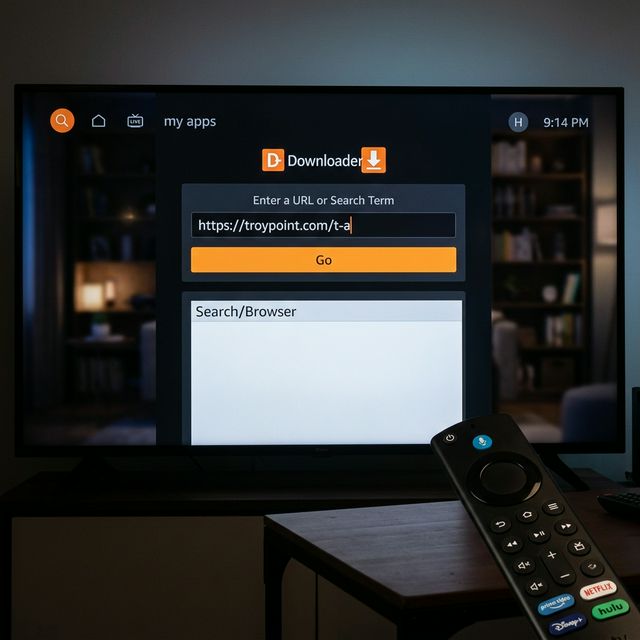
Open the Downloader app. You'll see a URL input field at the top. Using your Firestick remote, type the NetMirror APK download URL and press Go. The APK file will start downloading — you'll see a progress bar. At 28.4MB, it takes about 30-60 seconds depending on your internet speed.
Typing tip: If typing with the remote is tedious, connect a Bluetooth keyboard to your Firestick for faster URL entry. Or use the Amazon Fire TV app on your phone as a virtual keyboard.
Install and Start Streaming
After the download finishes, Downloader will automatically prompt you to install. Press Install with your remote. Wait about 20 seconds. When you see "App installed", you have two options:
- Open: Press "Open" to launch NetMirror immediately
- Done: Press "Done" to return to Downloader, where it will ask if you want to delete the APK file. Press "Delete" to save storage space.
NetMirror opens to its content library with zero setup. Browse with your remote's directional pad. Press the center button to select a title. Stream in up to 4K on supported Firestick models.
Supported Firestick & Fire TV Models
| Model | Max Quality | Status |
|---|---|---|
| Fire TV Stick 4K Max (2nd Gen, 2023) | 4K HDR | ✅ Tested |
| Fire TV Stick 4K (2023) | 4K HDR | ✅ Tested |
| Fire TV Stick 4K Max (1st Gen) | 4K HDR | ✅ Tested |
| Fire TV Stick 4K (2018) | 4K HDR | ✅ Tested |
| Fire TV Stick (3rd Gen) | 1080p | ✅ Tested |
| Fire TV Stick Lite | 1080p | ✅ Tested |
| Fire TV Cube (3rd Gen) | 4K HDR | ✅ Tested |
| Fire TV Cube (2nd Gen) | 4K HDR | ✅ Tested |
| Fire TV Stick (2nd Gen) | 1080p | ✅ Tested |
| Fire TV (1st Gen) | 1080p | ⚠️ May be slow |
All models listed above run NetMirror without issues. The Fire TV Stick 4K Max and Fire TV Cube provide the best performance due to their faster processors and additional RAM.
Firestick Troubleshooting
❌ "Install blocked" or Permission Denied
Fix: Go to Settings → My Fire TV → Developer Options → Install Unknown Apps and make sure the toggle is ON for Downloader specifically. On newer Fire OS, each app needs individual permission.
❌ Downloader Downloads but Installation Fails
Fix: Your Firestick may be low on storage. Go to Settings → My Fire TV → About → Storage and check available space. You need at least 100MB free. Uninstall unused apps or clear cache to make room.
❌ NetMirror Not Appearing in Apps List
Fix: Sideloaded apps sometimes don't appear on the home screen. Navigate to Settings → Applications → Manage Installed Applications → NetMirror → Launch Application. To add it to your home screen, press and hold the home button and select Apps.
❌ Buffering During Streaming
Fix: Connect your Firestick to your router's 5GHz WiFi band (not 2.4GHz) for better speed. If your router is far away, consider an Ethernet adapter for the Firestick. Clear NetMirror's app cache (Settings → Applications → NetMirror → Clear Cache) and try a different streaming server within the app.
For more advanced troubleshooting, see our full NetMirror not working guide.
Firestick Installation — FAQ
Yes. Sideloading is a standard feature of Fire OS. Amazon built the "Apps from Unknown Sources" setting specifically for this purpose. It doesn't hack, root, or jailbreak your device. Your warranty remains intact.
Yes. NetMirror supports Fire TV remote navigation. Use the directional pad to browse, center button to select, and play/pause button for content playback. For faster navigation, connect a Bluetooth mouse.
You can use Alexa to open NetMirror ("Alexa, open NetMirror"), but in-app voice search isn't supported since NetMirror isn't an official Amazon app. Use the app's built-in search feature instead.
Open the Downloader app, enter the NetMirror download URL again, and download the latest version. Install it over your existing version — your settings will be preserved. We recommend checking for updates monthly.
Yes — on 4K-capable models. The Fire TV Stick 4K, 4K Max, and Fire TV Cube all support 4K streaming through NetMirror. The standard Fire TV Stick and Lite models are capped at 1080p. You'll also need a 4K TV and 25 Mbps+ internet.